Team Account
Collaborating on Projects with Team Account
Are you using a Nodit project with your team? You can convert your account to a team account and start collaborating with multiple team members on projects. Follow the guide below to invite team members and share key resources and metrics of your project.
If you want to convert to a team account through team creation, please subscribe to Starter Plus plan or higher. You can find more details about types of paid plans and restrictions by plan on the Pricing plans page.
Understanding Account Types: Team Owner and Team Member
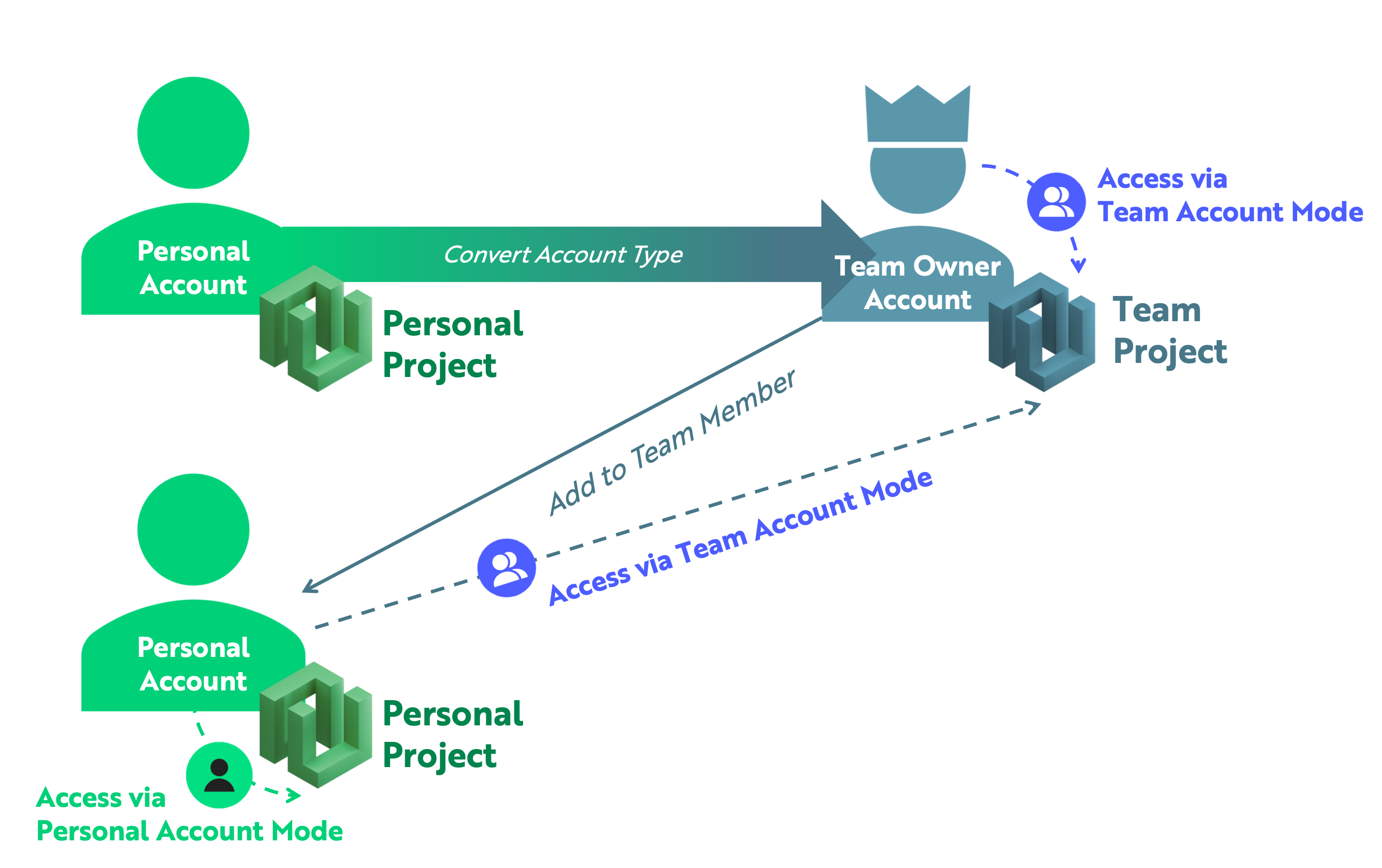
Team Owner Account is an admin account that has all permissions related to team project settings (payment method management, plan changes, coupon credit usage, etc.) and team management (member invitation and deletion) permissions. Any account that does not belong to another team can convert their personal account to a team account and share all projects with team members. An account converted to a team owner account cannot have a separate personal account mode and can only manage projects in team account mode. Additionally, team owner accounts cannot participate as team members of other team projects.
Team Member Account is an account invited to a team project, and has the same permissions as the team owner for all features except project settings-related features for the team project. Unlike team owner accounts, team member accounts can freely switch between personal account mode and team account mode, and maintain the same admin permissions for existing personal projects.
Feature | Team Owner Account | Team Member Account |
|---|---|---|
Switch between Personal Account ↔ Team Account | ❌ | ✅ |
Manage Team Project Payment Method | ✅ | ❌ |
Change Team Project Plan | ✅ | ❌ |
View and Use Team Project Coupons | ✅ | ❌ |
View and Use Team Project Credit | ✅ | ❌ |
View Team Project Profile | ✅ | ❌ |
Invite Team Members | ✅ | ✅ |
Remove Team Members | ✅ | ✅ |
View Team Project Dashboard | ✅ | ✅ |
View Team Project API Key | ✅ | ✅ |
Configure Team Project Security | ✅ | ✅ |
View Team Project Request Logs | ✅ | ✅ |
Create, View, Delete Team Project Webhook | ✅ | ✅ |
Configure Team Project Auto Scaling | ✅ | ❌ |
Maximum Number of Projects Can Participate as Team Member | 0 | 3 |
Team Owner: Convert to Owner Account and Invite Members
If you haven't been invited to a separate team project after initial registration, you can convert your account to a team owner account through the console. The method to convert your account to a team owner account and invite members is as follows.
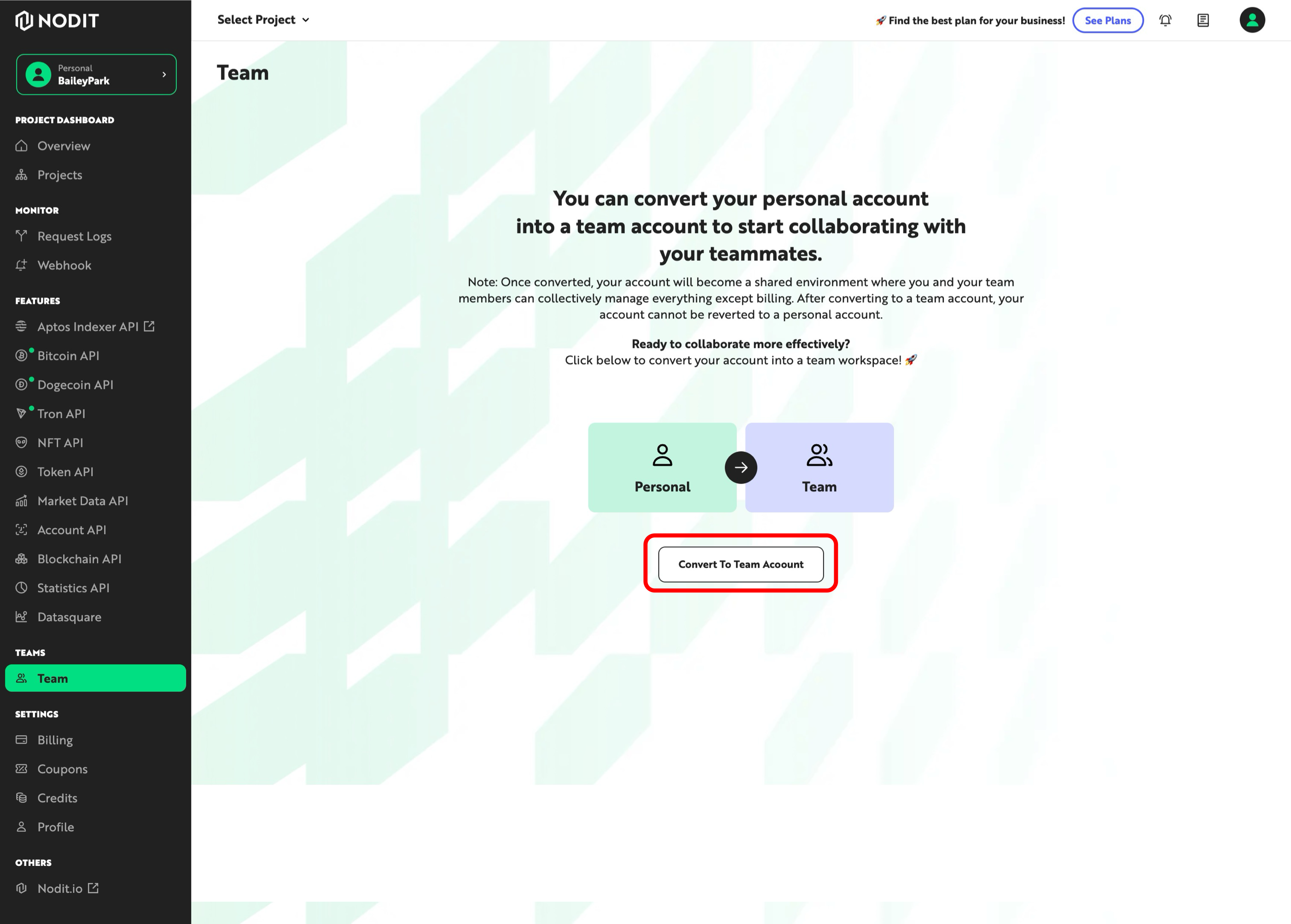
- Click the [Team] menu in the left console menu to navigate to the Team settings screen.
- Click the [Convert To Team Account] button to convert your account to a team owner account and convert your personal project to a team project.
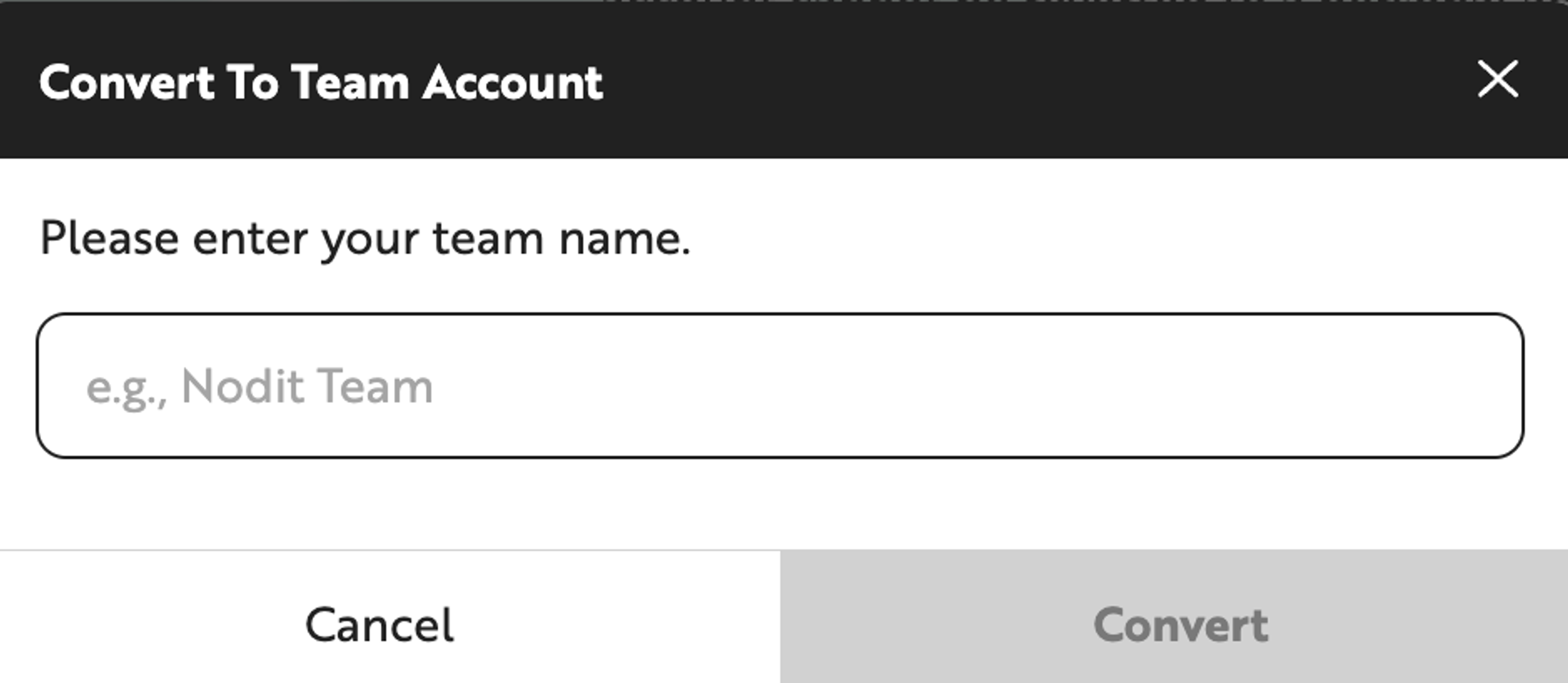
- Enter the team name you want to set in the popup screen for setting the team name as shown below and click the [Convert] button. The team name can be changed later in the team management menu.
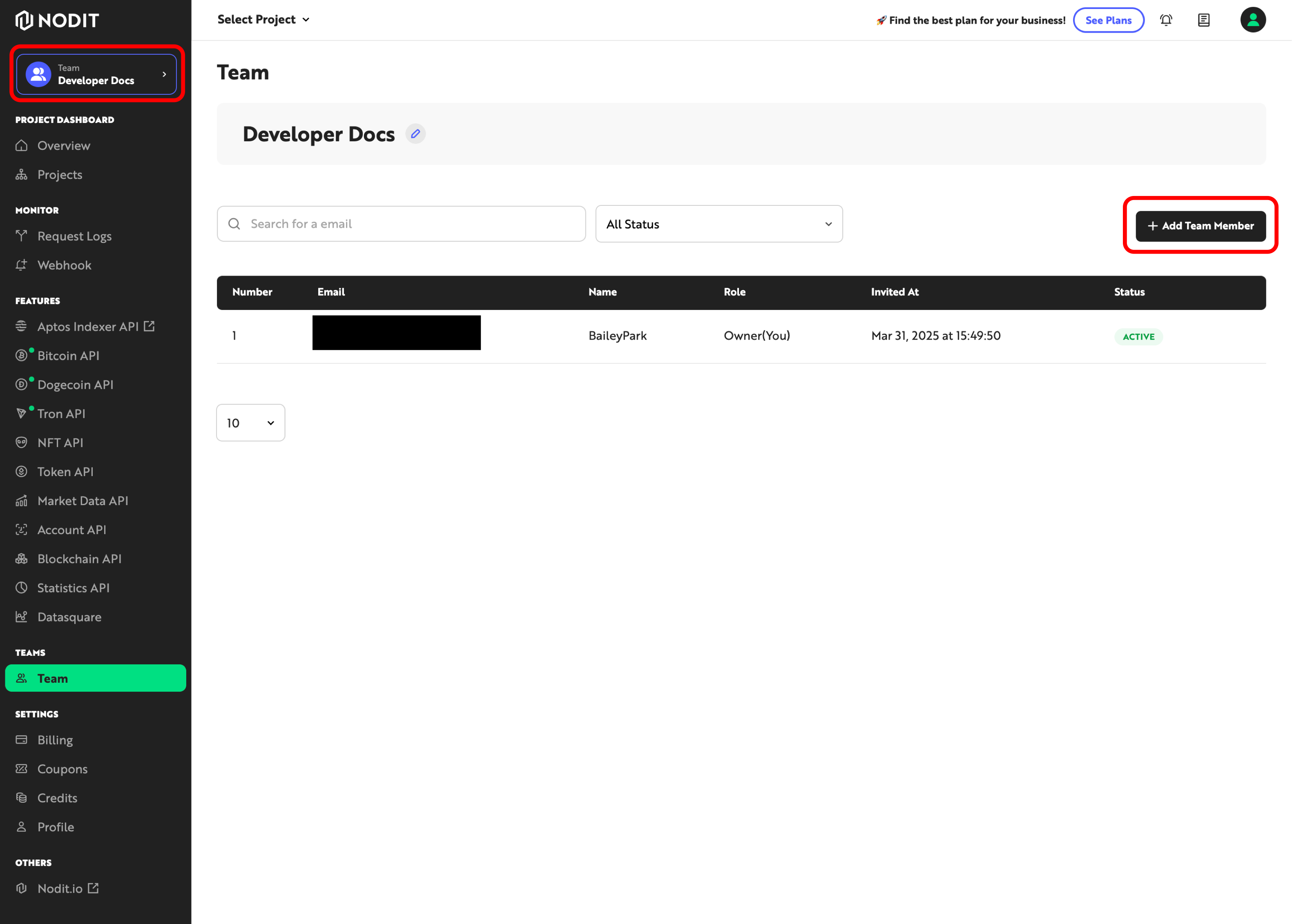
- Once team creation is complete, you can see that the account mode at the top of the console menu has changed to team account mode. You can invite new members by clicking the [+ Add Team Member] button in the team settings menu.
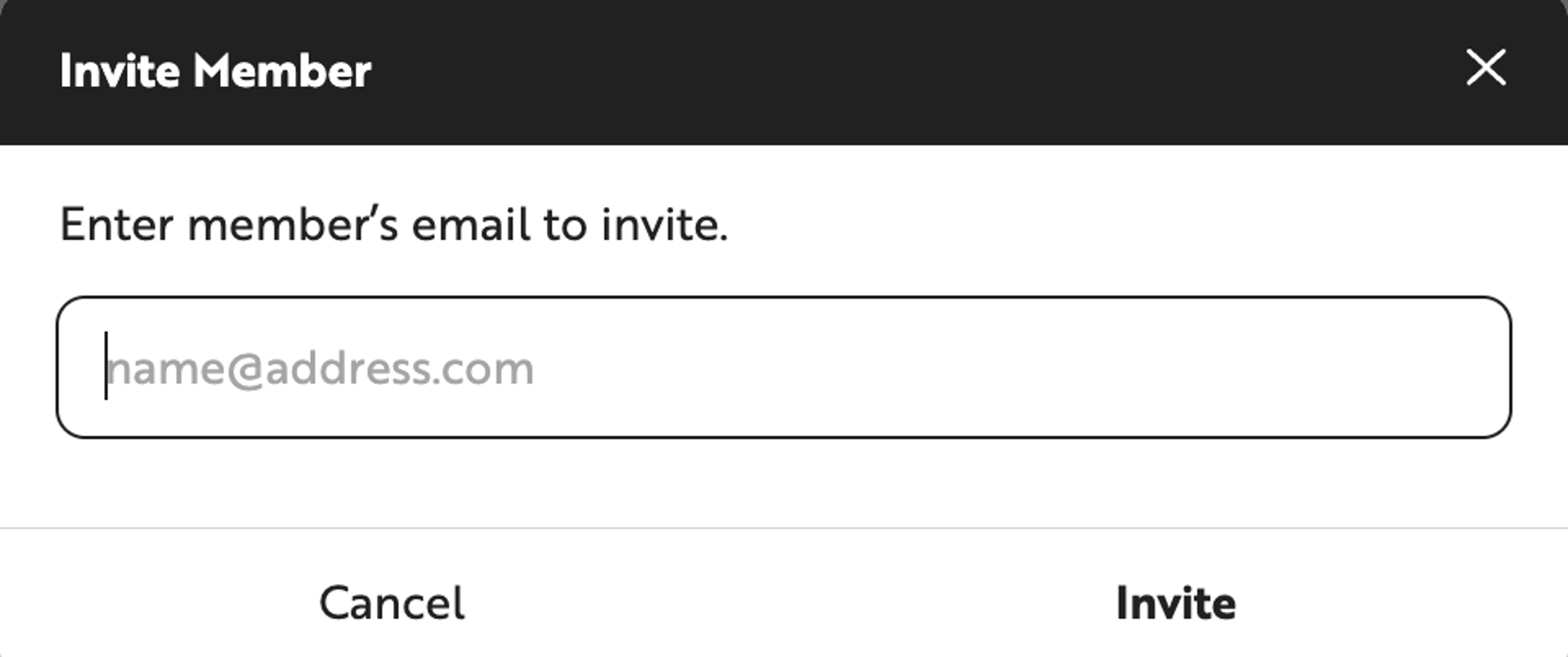
- In the popup screen that appears when you click the button, enter the email address corresponding to the account of the member you want to invite. When you click the [Invite] button, a team invitation email will be sent to that account's email.
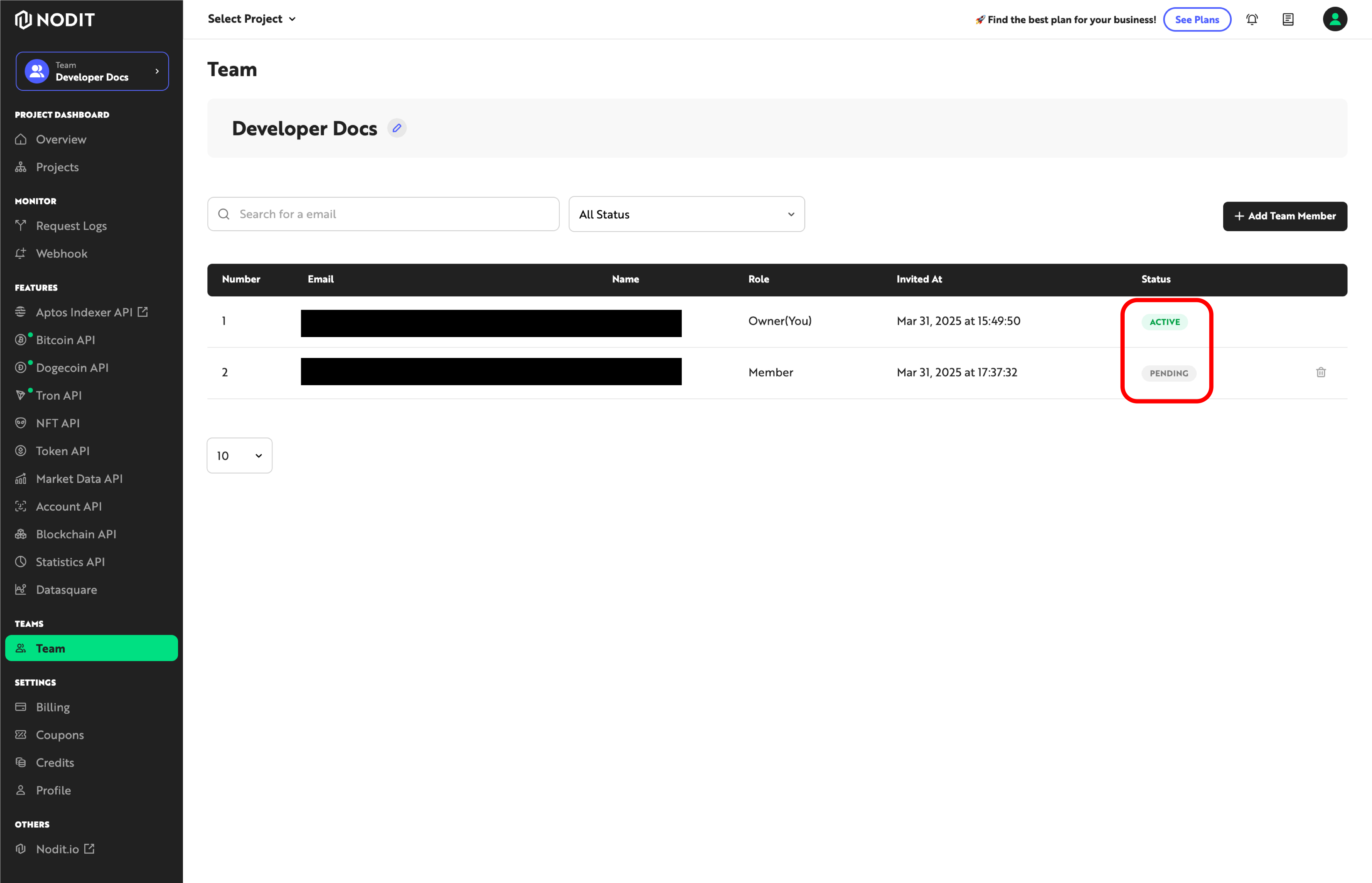
- You can search for members in the team menu or check the invitation acceptance status and state of invited members. The member status values that can be displayed are as follows.
ACTIVE: Invitation and acceptance completed successfullyPENDING: Invitation sent successfully, but not yet accepted
Team Member: Accepting Invitation
Team member accounts invited to a team project by the team owner or other team members can accept the invitation and join the team project as follows.
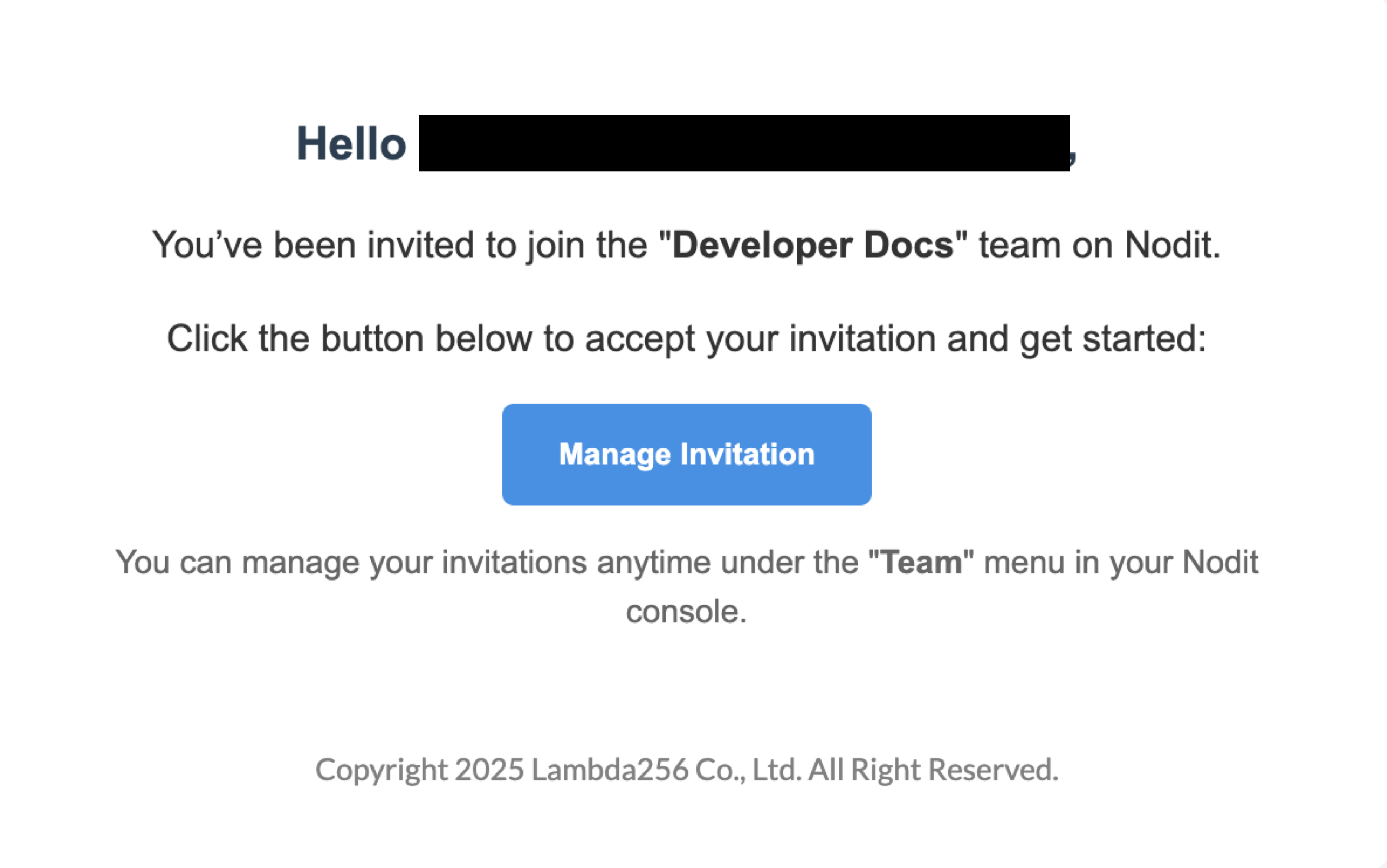
- Check the invitation email sent to the account's email address as shown below, then click the [Manage Invitation] button to navigate to the console screen. If you did not receive the email normally, you can directly access the Team menu of the console with the invited account to check the invitation message.
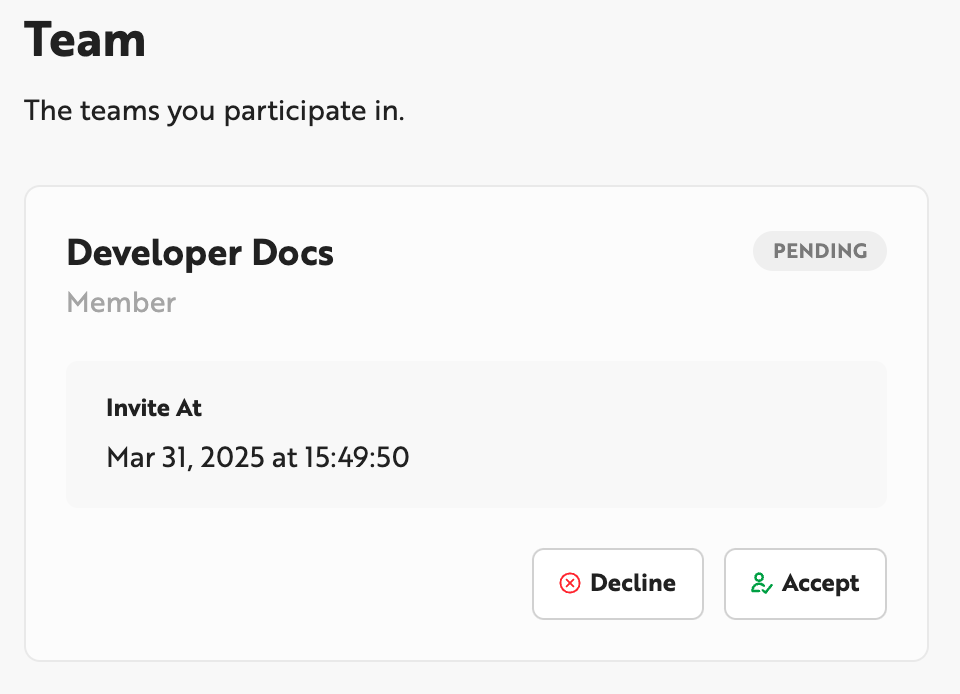
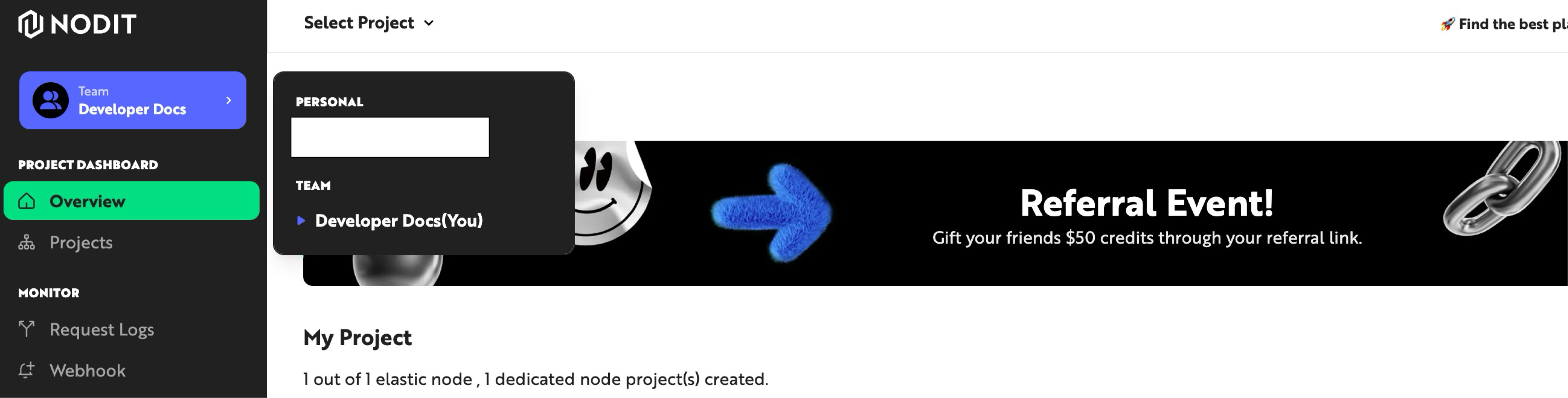
- Click the [Accept] button to accept the invitation and join as a team member of the invited team project. You can switch to team account mode or personal account mode at the top of the console menu.
Removing Members
You can remove members in the team management menu. The target accounts that can be removed depending on the account type are as follows.
- Team Owner Account can remove other member accounts except themselves.
- Team Member Account can remove all member accounts including themselves.
The method to remove members is as follows.
- Navigate to the Team menu in the console menu.
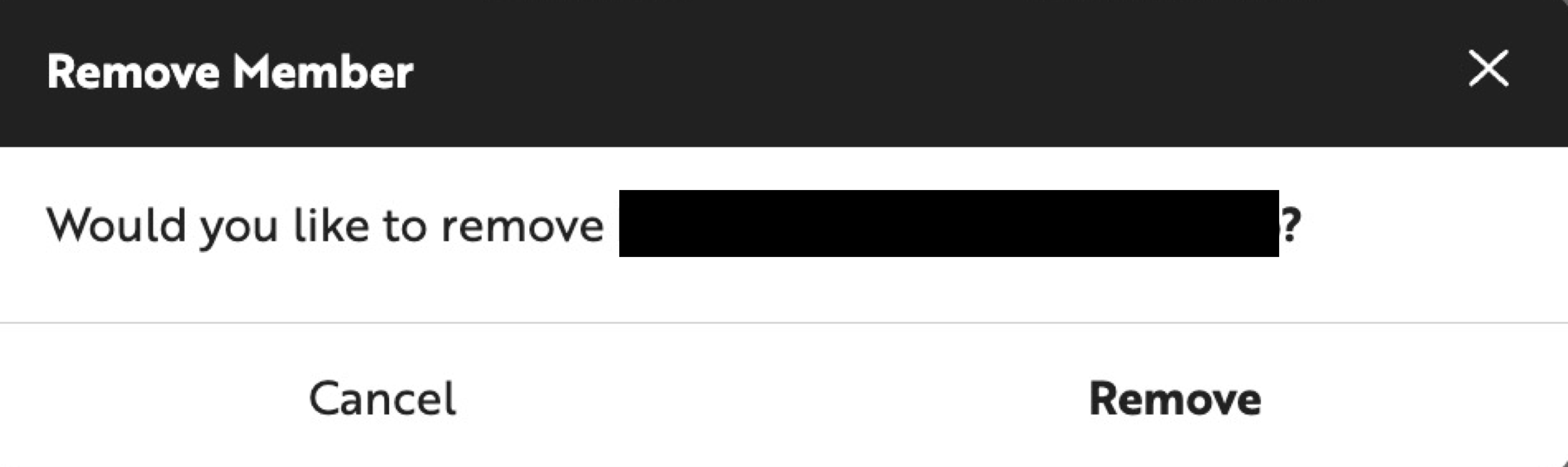
- Click the delete (trash can) icon on the right side of each member row in the member list.
- Click the [Remove] button in the delete confirmation popup to remove the member from the team.
FAQ
Q. Can I convert a team owner account that has been converted to a team account back to a personal account?
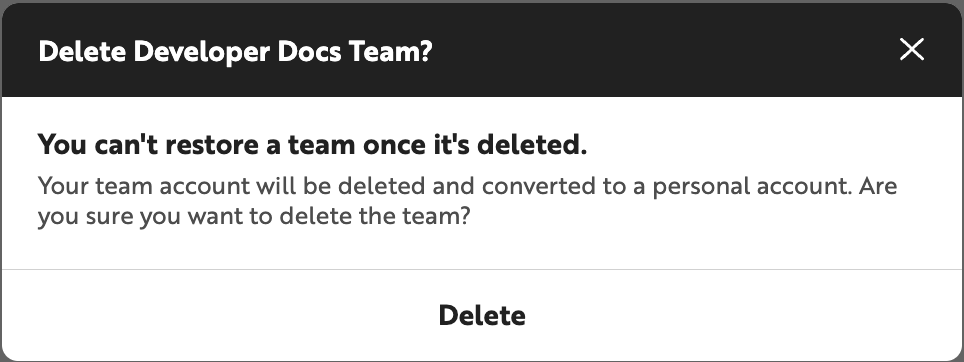
Yes, you can convert to a personal account after permanently deleting the created team. After removing all members belonging to the team, click the [Delete Team] button at the top to see a popup confirming conversion to personal account as shown below. When you permanently delete the team by clicking the [Delete] button, the owner account is converted to a personal account.
Q. How many team member accounts can I invite at maximum?
The maximum number of members that can be invited is limited according to the subscribed pricing plan. The maximum number of members by team subscription plan is as follows.
Starter | Starter Plus | Developer | Business | Enterprise |
|---|---|---|---|---|
Team feature not supported | 3 | 5 | 15 | Custom |
Q. Can I change a team member account to a team owner account?
No, you cannot change a team member account to a team owner account or grant team owner permissions to another team member account. We plan to provide various team management features through future team feature enhancements.
Q. Can I use team features for Dedicated Node projects?
Yes, it's possible. All projects shown in the team owner's Projects area are shared with team members. If you're operating a Dedicated Node project, you can similarly convert to a team owner account and use it as a team.
Q. I'm using multiple projects with a team owner account. Can I invite different teams for each project?
No, the team feature currently supports only sharing all projects owned by the team owner account with team members. We plan to provide more features through future team feature enhancements.
If you have suggestions for the Nodit team for better team features or need partner support, please send your feedback to [email protected]. The Nodit team will continue to do our best so that more teams can build a convenient Web3 development environment.