Subscription
Registering Payment Method
If you want to subscribe to Nodit's paid plan, you must register a payment method in advance. Plan recurring payment is automatically made every month through the registered payment method unless there is a separate cancellation request. The method to register a payment method is as follows.
Step 1. Navigate to Billing Menu
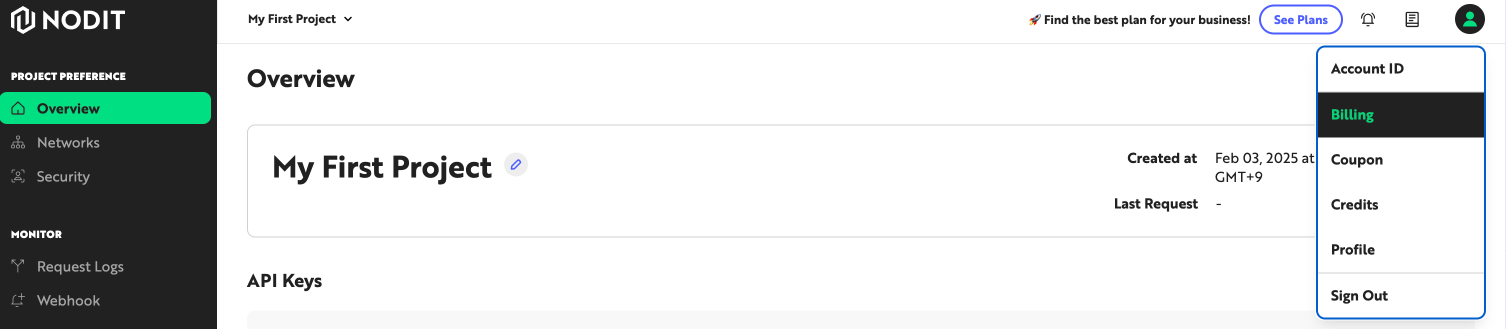
Click the profile icon at the top right of the Nodit console, then click the [Billing] menu to navigate to the account settings screen.
Step 2. Add Payment Method
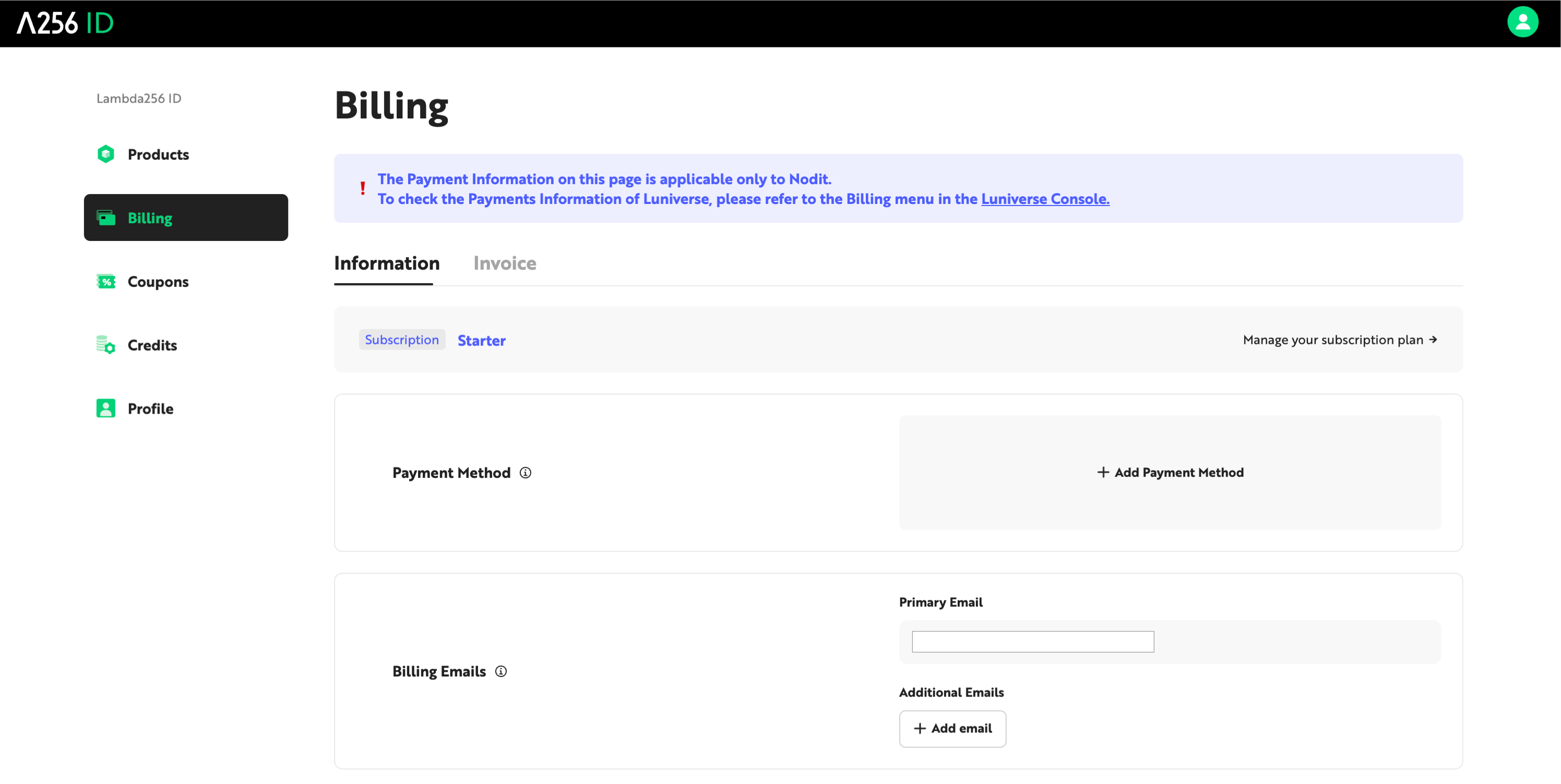
Click the [+ Add Payment Method] box.
Step 3. Select Payment Method
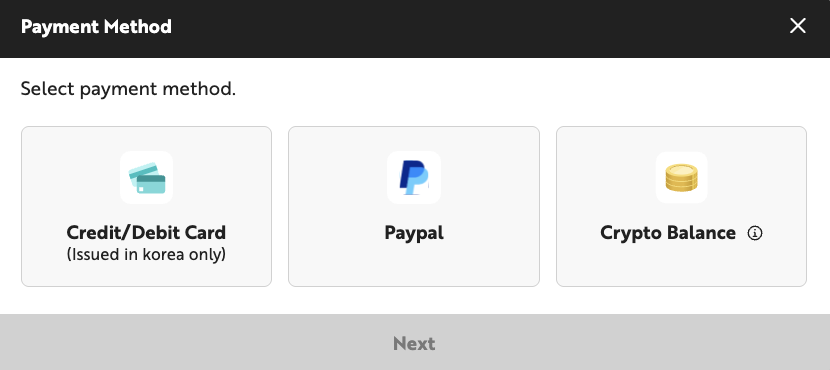
In the [Select Payment Method] popup window, select and click the payment method to use for paying subscription fees. The payment methods currently supported by Nodit are as follows.
- Credit/Debit Card - You can register credit cards or debit cards issued in South Korea to use as a recurring payment method. Payment amounts are charged in Korean Won (KRW).
- Paypal - You can integrate a Paypal account with registered credit cards, debit cards, and other payment methods to use as a recurring payment method. Payment amounts are charged in US dollars (USD).
- Crypto Balance - After charging Nodit account's Crypto Balance by paying cryptocurrency, the recurring payment amount is deducted from that Balance. Payment amounts are charged in US dollars (USD).
Step 4-1. Registering Credit/Debit Card Payment Method
If you selected credit/debit card in Step 3, navigate to the payment agency page and enter the card information to use for payment. Only credit card or debit card information issued in South Korea can be registered. If the entered card information is valid, a minimum amount (100 KRW or $0.01) payment is processed to confirm the card's availability. Upon successful payment, the card is registered as a payment method, and the paid amount is immediately refunded.
Step 4-2. Registering Paypal Payment Method
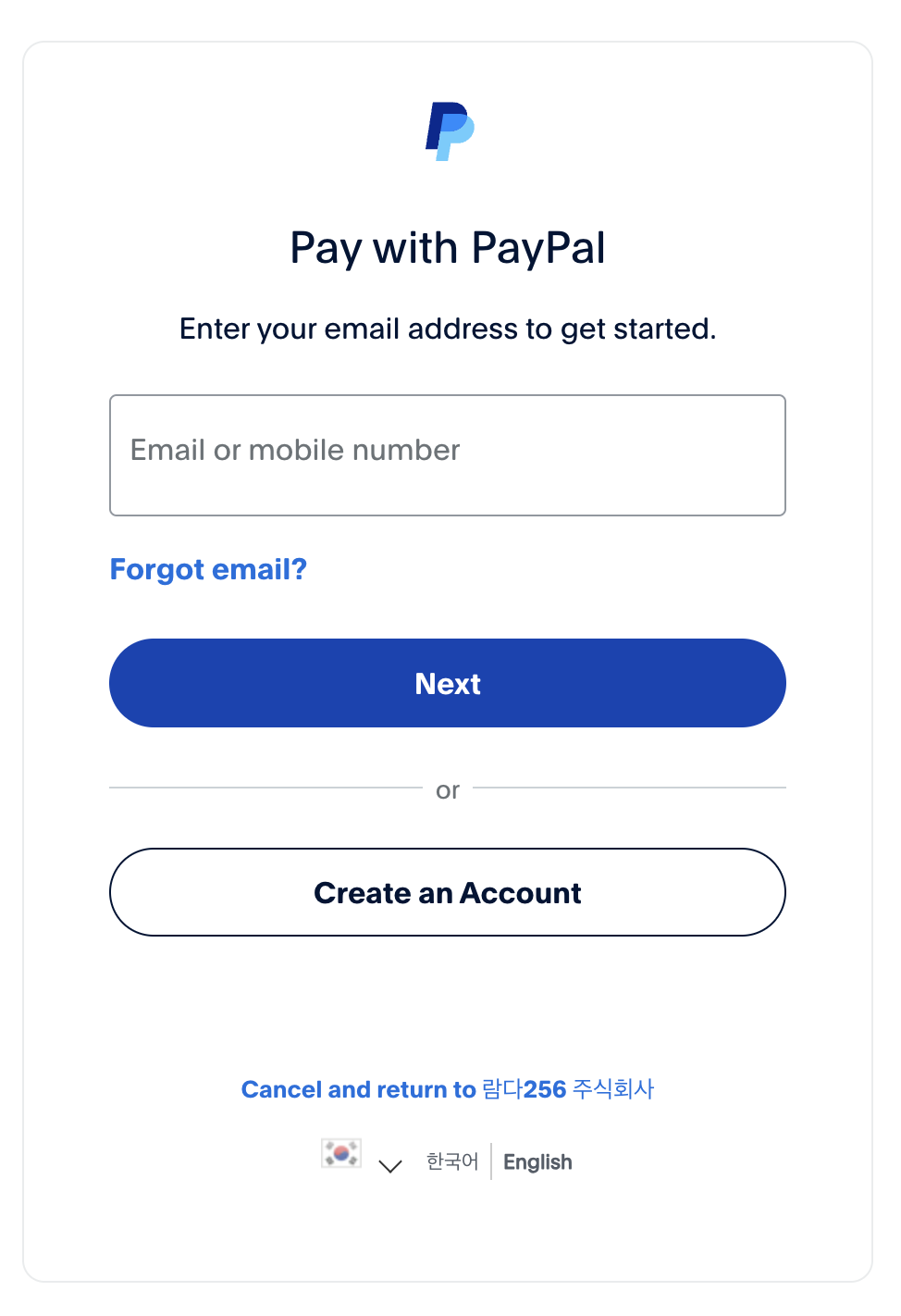
If you selected Paypal in Step 3, you will navigate to the Paypal account login screen. You can complete payment method registration by entering a Paypal account with registered credit cards, debit cards, or other payment methods.
Due to Nodit's payment policy, Paypal accounts linked with credit cards or debit cards issued in Korea cannot currently be registered as payment methods. Please additionally register credit cards or debit cards issued in countries other than Korea to your Paypal account, or select the credit/debit card method in Step 3 to register a payment method.
Step 4-3. Registering Crypto Balance Payment Method
If you selected Crypto Balance in Step 3, you can pay subscription fees by charging Crypto Balance by paying cryptocurrency and then deducting from that balance. For detailed information on Crypto Balance charging and usage, please refer to the Crypto Balance page.
Step 5. (Optional) Adding Billing Email for Invoice Receipt
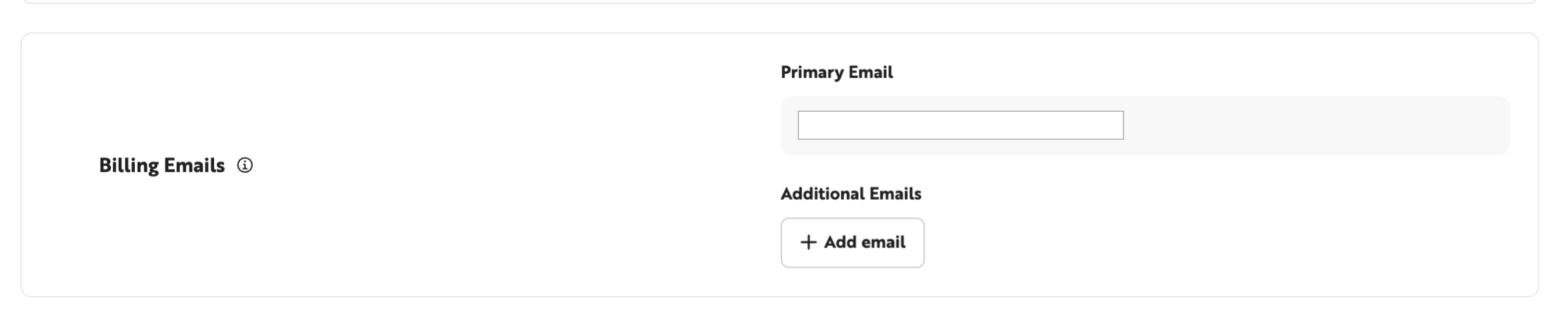
Payment invoices are sent to the account's email address (Primary Email). If you want to add emails to receive invoices, click the [+Add email] button in the Billing Emails menu to add email addresses. You can additionally register up to 10 emails.
Changing Payment Method
You can change the registered payment method to another payment method before starting a plan subscription or while subscribing to a plan. The method to change payment method is as follows.
Step 1. Navigate to Billing Menu
Click the profile icon at the top right of the Nodit console, then click the [Billing] menu to navigate to the account settings screen.
Step 2. Select New Payment Method
Click the [Update] button in the payment method area shown in the screen below to select the payment method you want to newly register.

Step 3. Register New Payment Method
Follow Step 4 of Registering Payment Method to register the selected payment method.
If you are using credit card/debit card as the existing payment method, direct conversion of payment method to Crypto Balance is not possible as plan payment currency is set to Korean Won (KRW) and payment proceeds, which is based on US dollar (USD) payment. If you want to change the payment method, please first cancel the existing subscribed plan, register Crypto Balance as the payment method, and subscribe to a new plan.
Subscribing to Plans
Nodit provides 4 plans to meet various user requirements. There are differences in CU provision amount, Throughput limit values, etc. depending on the plan, and you can check more detailed specifications for each plan by clicking here.
Step 1. Navigate to Plan Subscription Page
Click the [See Plans] button in the GNB of the Nodit console.

Step 2. Select Plan to Subscribe
Select the plan to subscribe to and payment method (monthly/yearly) from among the 5 plans: STARTER, STARTER PLUS, DEVELOPER, BUSINESS, ENTERPRISE.
Step 3. Plan Payment
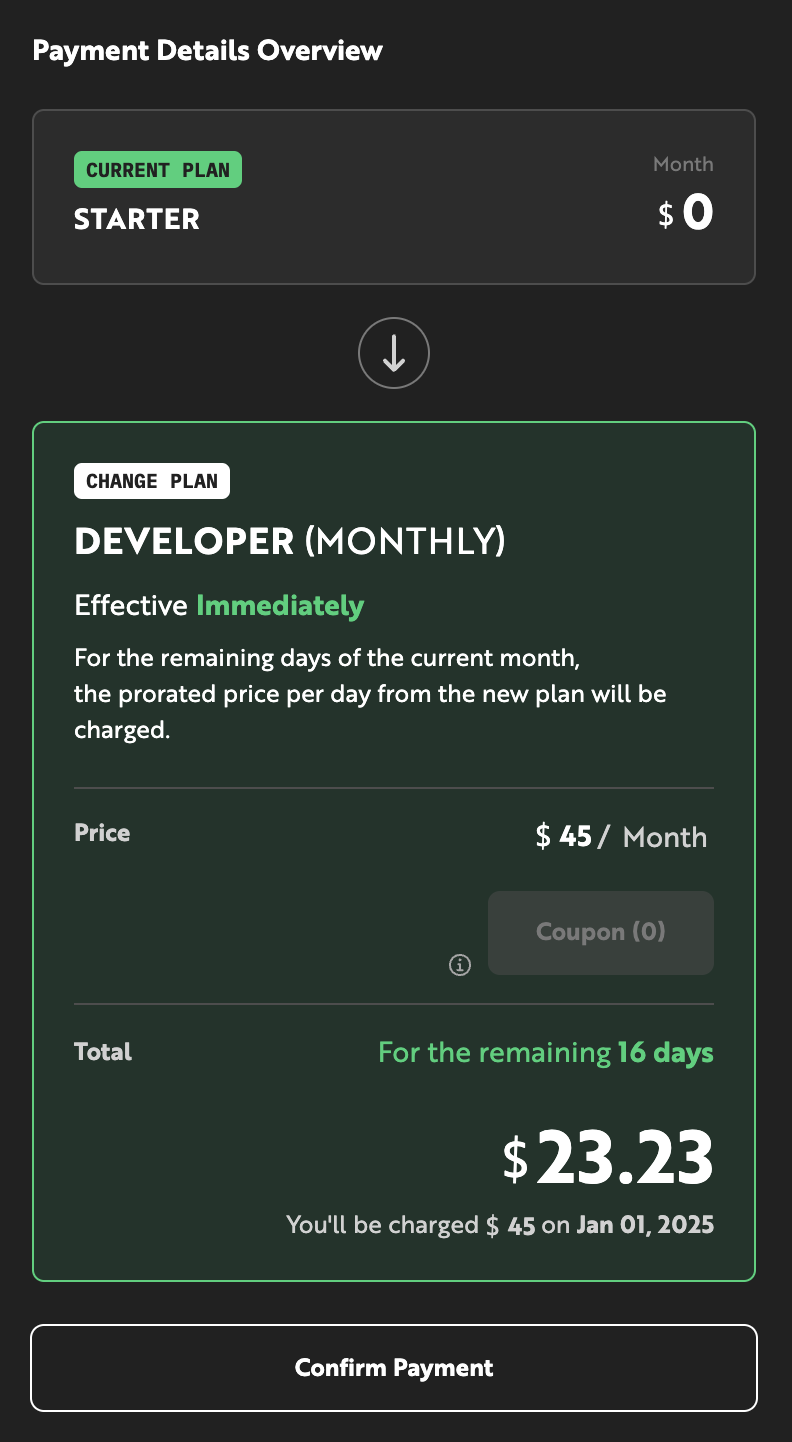
After selecting the plan and payment method, you can check the payment details in the [Payment Details Overview] box. You can proceed with payment by clicking the [Confirm Payment] button, and payment proceeds using the registered Payment Method. You can use the subscribed plan immediately after payment is completed.
Changing Plans
Users can change their subscribed plan at any time. There are two methods to change plans: 1. Upgrade plan to change to a higher plan than the currently subscribed plan, 2. Downgrade plan to change to a lower plan than the currently subscribed plan.
Plan Upgrade
Users can change their subscribed plan to a higher plan if the Monthly CU of the subscribed plan is insufficient or they want to increase Throughput. Upgrade plan proceeds in the same way as plan subscription, and you select and pay for a higher plan than the previously subscribed plan. You can use the resources of the higher plan immediately after completing payment.
Plan Downgrade
Users can consider a downgrade plan if they determine that Monthly CU or Throughput is sufficient even with a lower plan than the currently subscribed plan. Downgrade plan proceeds with the same procedure as plan subscription, and you select a lower plan than the previously subscribed plan and proceed with payment.
Downgrade plan payment is set to reserved status, and you can use the resources of the lower plan from the 1st of the next month to which the plan change application date belongs. For example, if you apply for plan change on December 13, the changed plan is applied from January 1. Reservation change and cancellation for downgrade plan are possible until the day before the payment date (2nd of each month 23:59:59 UTC).
Canceling Subscription
Users can cancel their subscription at any time. As soon as you proceed with subscription cancellation, the amount excluding usage from the payment amount is refunded and the plan is changed. The method to cancel subscription is as follows.
Before canceling your subscription, you must have no outstanding charges on your account and have only 1 project and API Key to cancel your subscription.
- Click the ID box on the right side of the GNB in the Nodit console and click the [Payments] menu in the dropdown box.
- Select the STARTER plan (free plan) and proceed with payment.
- Check the Current Plan and Change Plan information in the Change Plan popup window and click the [Confirm] button.
- When the subscription is successfully canceled, you can confirm that the currently subscribed plan is the STARTER plan in the Account Dashboard. You can check the invoice and Receipt according to Plan change through email.
Subscription Related FAQ
Q. There was a problem with the registered payment method and the subscription payment was not processed normally. What should I do?
Please refer to the Outstanding Charges page for service restrictions and repayment due to unpaid subscription fees.
Q. I charged Crypto Balance but subscription payment through Balance was not made.
If you want to proceed with subscription payment using Crypto Balance, you must cancel the existing payment method and change the payment method to Crypto Balance. If another payment method is registered, subscription payment proceeds to the registered payment method regardless of Balance charge success.