Subscription
Subscribing to a Nodit paid plan unlocks higher Compute Unit (CU) limits and throughput. Before starting a subscription, register a payment method. This guide walks through the entire subscription management process — from registering a payment method to subscribing, changing, and canceling a plan.
Register a Payment Method
Paid plans are billed automatically each month using the registered payment method. Register a payment method before subscribing to a paid plan.
Step 1. Go to Billing
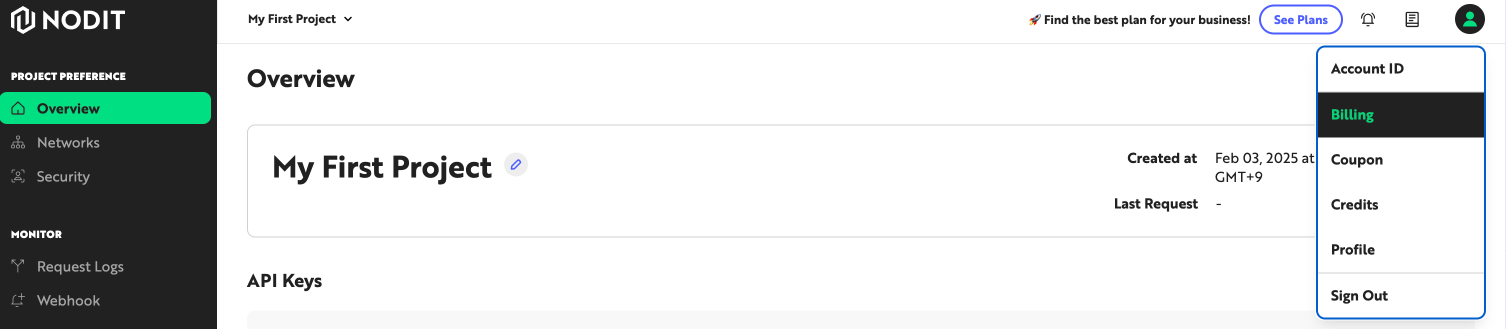
Click the profile icon in the top-right corner of the Nodit console, then click [Billing] to open the account settings screen.
Step 2. Add a Payment Method
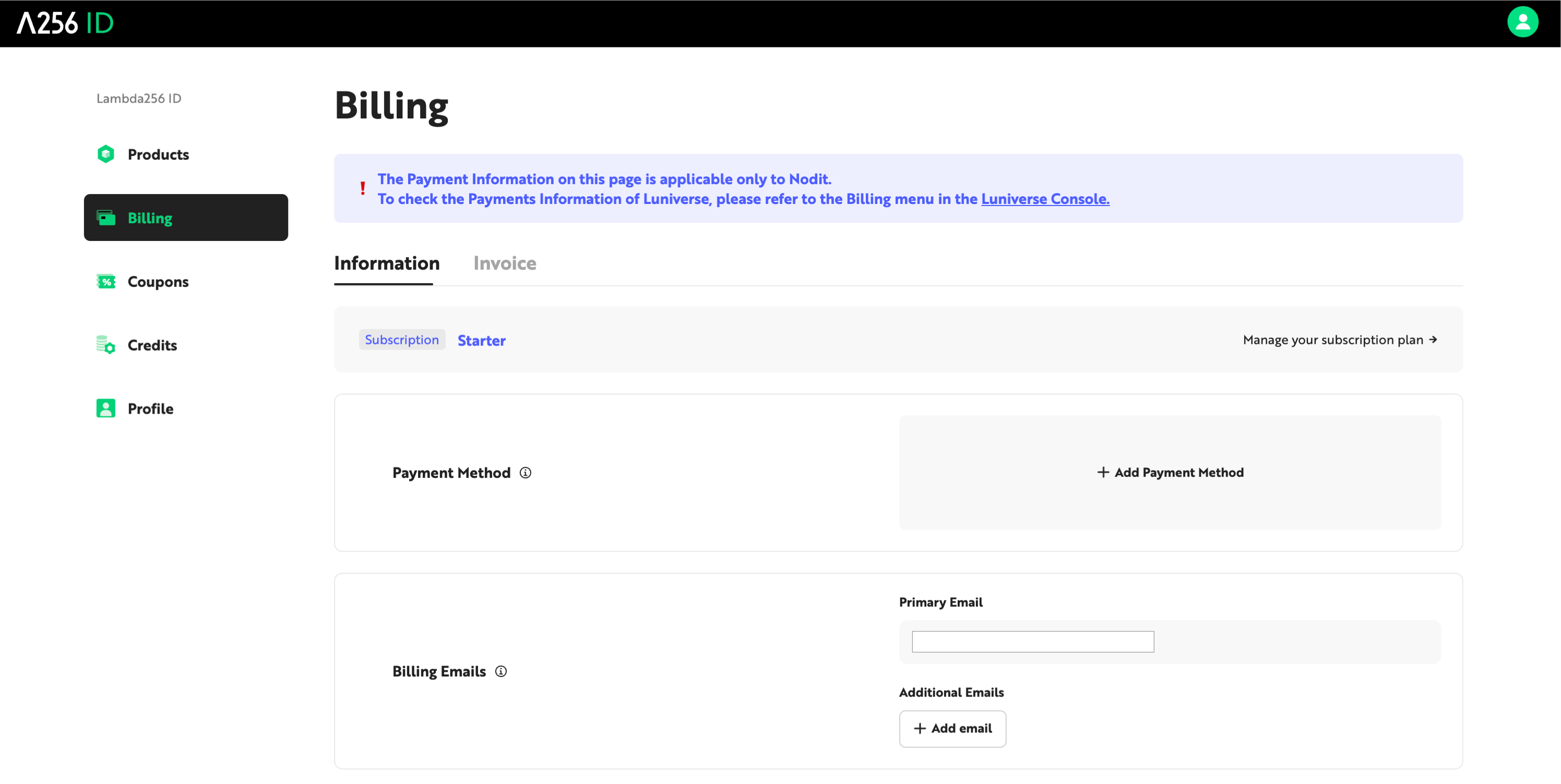
Click the [+ Add Payment Method] box.
Step 3. Select a Payment Method
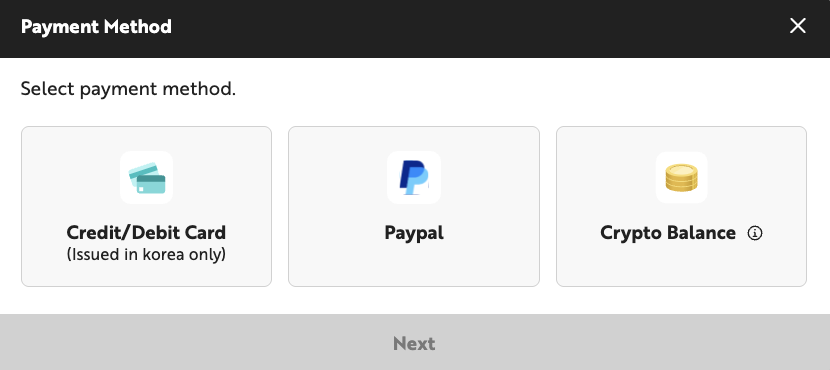
In the [Select Payment Method] popup, select the payment method to use for subscription billing. Nodit currently supports the following payment methods:
- Credit/Debit Card — Register a credit or debit card issued in South Korea as a recurring payment method. Charges are billed in Korean Won (KRW).
- PayPal — Link a PayPal account with a registered credit card, debit card, or other payment method. Charges are billed in US Dollars (USD).
- Crypto Balance — Top up your Nodit account's Crypto Balance with cryptocurrency, then have subscription charges deducted from that balance. Charges are billed in US Dollars (USD).
Step 4-1. Register a Credit/Debit Card
If you selected a credit/debit card in Step 3, you will be redirected to the payment processor's page to enter your card details. Only cards issued in South Korea are accepted. A minimum charge (KRW 100) is made to verify the card and immediately refunded.
Step 4-2. Register PayPal
If you selected PayPal in Step 3, you will be redirected to the PayPal login screen. Link a PayPal account that has a credit card, debit card, or other payment method registered to complete the setup.
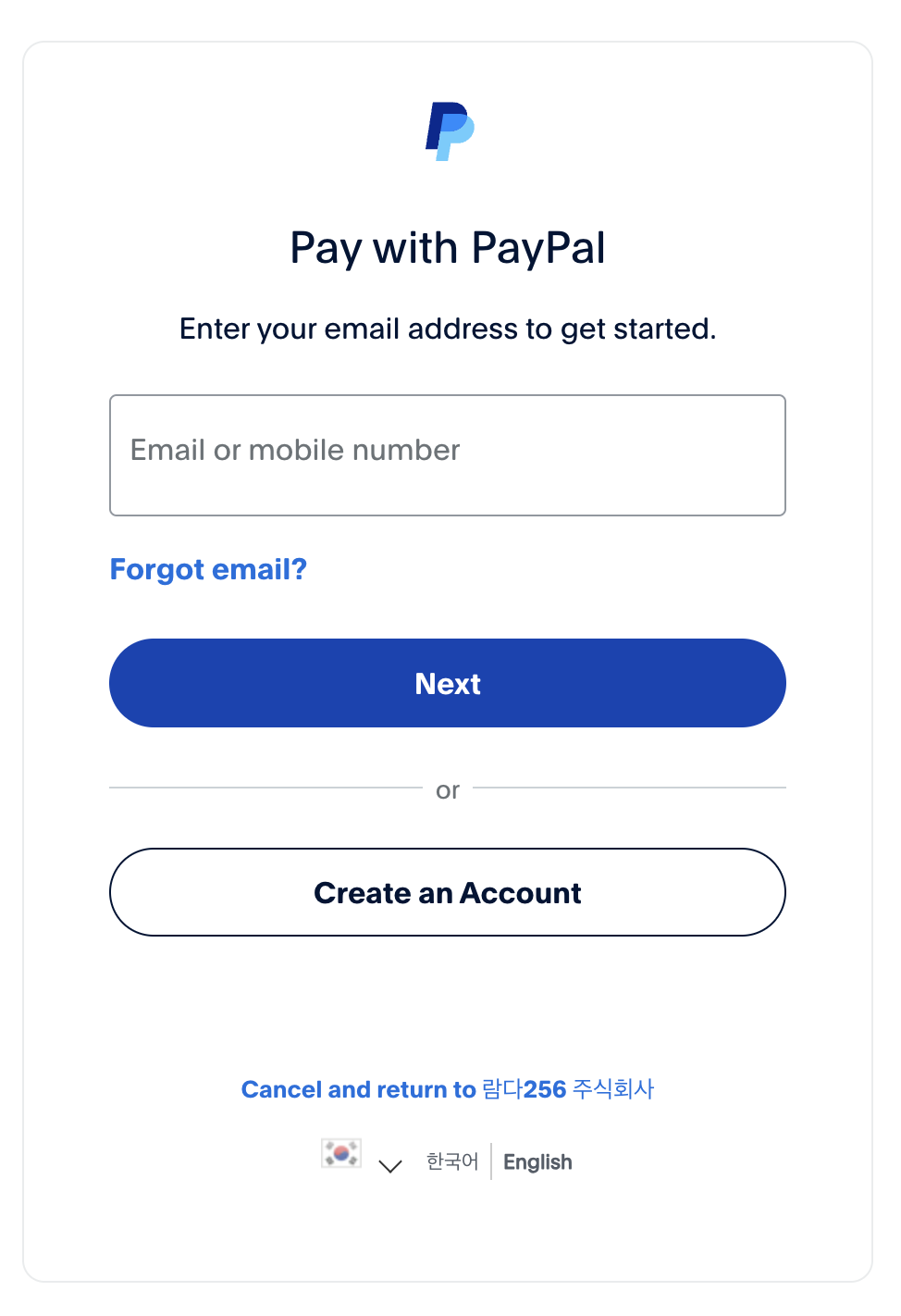
Per Nodit's billing policy, PayPal accounts linked to credit or debit cards issued in South Korea cannot be registered as a payment method. Add a non-Korean card to your PayPal account, or select the credit/debit card option directly in Step 3.
Step 4-3. Register Crypto Balance
If you selected Crypto Balance in Step 3, top up your balance with cryptocurrency to pay for your subscription. For details on how to top up and use Crypto Balance, see the Crypto Balance documentation.
Step 5. (Optional) Add Invoice Recipient Emails
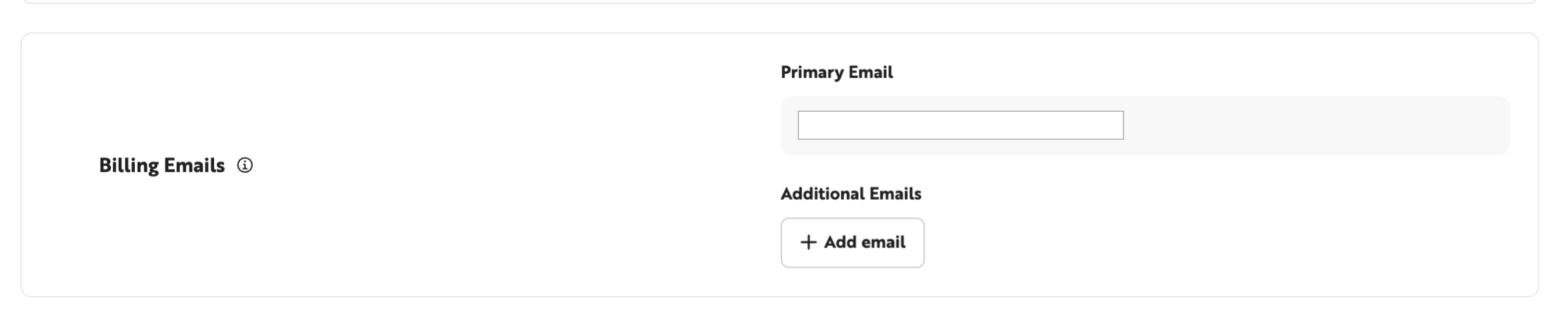
Billing invoices are sent to the account's primary email address. To add additional recipients, click [+Add email] in the Billing Emails section. Up to 10 additional email addresses can be registered.
Change a Payment Method
The registered payment method can be changed before or during an active subscription.
Step 1. Go to Billing
Click the profile icon in the top-right corner of the Nodit console, then click [Billing].
Step 2. Select a New Payment Method
Click [Update] in the payment method section, then select the new payment method to register.

Step 3. Register the New Payment Method
Follow the Step 4 instructions in the Register a Payment Method section to complete registration for the selected method.
If your current payment method is a credit or debit card, your plan billing currency is set to Korean Won (KRW), which prevents a direct switch to the USD-based Crypto Balance. Cancel your current subscription first, then register Crypto Balance as the payment method and subscribe to a new plan.
Subscribe to a Plan
After registering a payment method, select a plan to start your subscription. For a comparison of plan specifications, see the Plans documentation.
Step 1. Go to the Plan Subscription Page
Click [See Plans] in the Nodit console GNB.

Step 2. Select a Plan
Choose a plan — Starter, Starter Plus, Developer, Business, or Enterprise — and select a billing cycle (monthly or annual).
Step 3. Complete Payment
After selecting a plan and billing cycle, review the billing details in the [Payment Details Overview] box. Click [Confirm Payment] to process the payment using the registered payment method. The plan becomes active immediately upon successful payment.
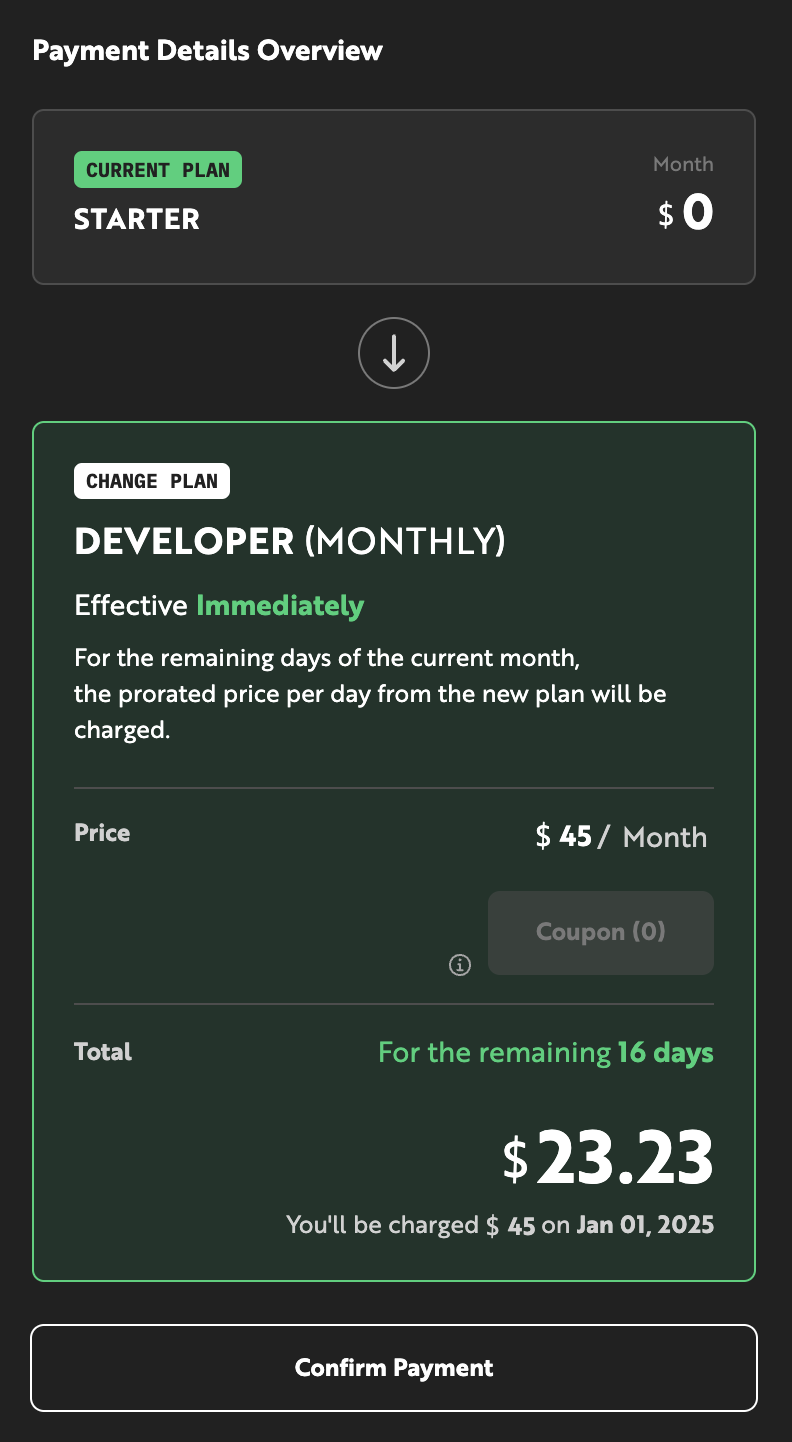
If you have registered coupons or credits, apply them in the Payment Details Overview before completing payment. Charges are deducted in the following order: [Coupon → Credit → Registered payment method]. For details, see the Coupon & Credit documentation.
Change a Plan
During an active subscription, you can upgrade or downgrade to a different plan as needed. Upgrades take effect immediately; downgrades take effect on the first day of the following month.
Plan Upgrade
Upgrade to a higher plan when you need more monthly CUs or higher throughput. The upgrade process follows the same steps as subscribing to a plan. Higher-plan resources become available immediately upon successful payment.
Plan Downgrade
Downgrade to a lower plan when your current CU and throughput no longer requires the current tier. A downgrade is processed as a scheduled change and takes effect on the first day of the month following the request date. For example, a downgrade requested on December 13 takes effect on January 1.
A scheduled downgrade can be canceled up until the day before the next billing date (the 2nd of each month at 23:59:59 UTC).
Cancel a Subscription
Canceling a subscription refunds the unused portion of the billing period and downgrades the plan to Starter.
To cancel a subscription, the account must have no outstanding balance, and must have no more than one project and one API key. Cancellation will not proceed if these conditions are not met.
Follow these steps to cancel your subscription:
- Click the ID box on the right side of the Nodit console GNB, then click [Payments] in the dropdown.
- Select the Starter plan (free plan) and proceed with payment.
- In the [Change Plan] popup, review the current and new plan, then click [Confirm].
- Once the cancellation is complete, confirm that the current plan has changed to Starter in the Account Dashboard. An invoice and receipt for the plan change will be sent by email.